Project 07: Flowing Light
Introduction
In our daily life, we can see many billboards made up of different colors of LED. They constantly change the light to attract the attention of customers. In this project, we will use Plus control board with 5 LEDs to achieve the effect of flowing water.
Components Required

Circuit Diagram and Wiring Diagram


Note:
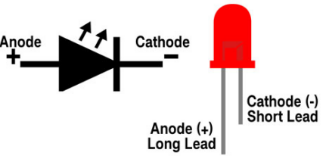
How to connect the LED
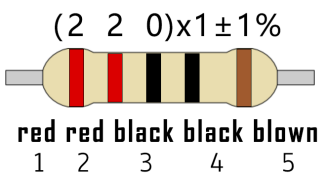
How to identify the 220Ω 5-band resistor
Test Code:
You can open the code we provide:
Go to the folder KS3026 Keyestudio Raspberry Pi Pico Learning Kit Basic Edition\2. Windows System\2. C_Tutorial\2. Projects\Project 07:Flowing Water Light\Project_07_Flowing_Water_Light
//**********************************************************************
/*
 * Filename    : Flowing Water Light
 * Description : Using ten leds to demonstrate flowing lamp.
 * Auther      : http//www.keyestudio.com
*/
byte ledPins[] = {16, 17, 18, 19, 20, 21, 22, 26, 27, 28};
int ledCounts;

void setup() {
  ledCounts = sizeof(ledPins);
  for (int i = 0; i < ledCounts; i++) {
    pinMode(ledPins[i], OUTPUT);
  }
}

void loop() {
  for (int i = 0; i < ledCounts; i++) {
    digitalWrite(ledPins[i], HIGH);
    delay(100);
    digitalWrite(ledPins[i], LOW);
  }
  for (int i = ledCounts - 1; i > -1; i--) {
    digitalWrite(ledPins[i], HIGH);
    delay(100);
    digitalWrite(ledPins[i], LOW);
  }
}
//**************************************************************
Before uploading Test Code to Raspberry Pi Pico, please check the configuration of Arduino IDE.
Click “Tools” to confirm that the board type and ports.

Click  to upload the test code to the Raspberry Pi Pico board.


Test Result:
After burning the project code, connecting the wires and powering on, the 10 LEDs will gradually light up and then gradually go off.
